Set up a shared tablet
Make a tablet the crew share, each worker switching in with their own PIN, and give apprentices without the app a way to work.
If several of your crew share one tablet, or an apprentice is not allowed the app on their own phone, set the tablet up as a shared tablet. It asks Who's working?, each worker taps their name and enters their PIN, and everything they do is recorded as theirs, with the tablet's name beside it. Shared tablets come with every plan.
Set up the tablet
Do this on the tablet itself.
- On the tablet, add Crewzy to the Home Screen first and open it from there. An iPad keeps a Home Screen app apart from Safari, so an iPad set up in a Safari tab would not stay set up in the app. See Put the app on your phone; Use this device as a shared tablet shows the steps too.
- Sign in as an owner or office person.
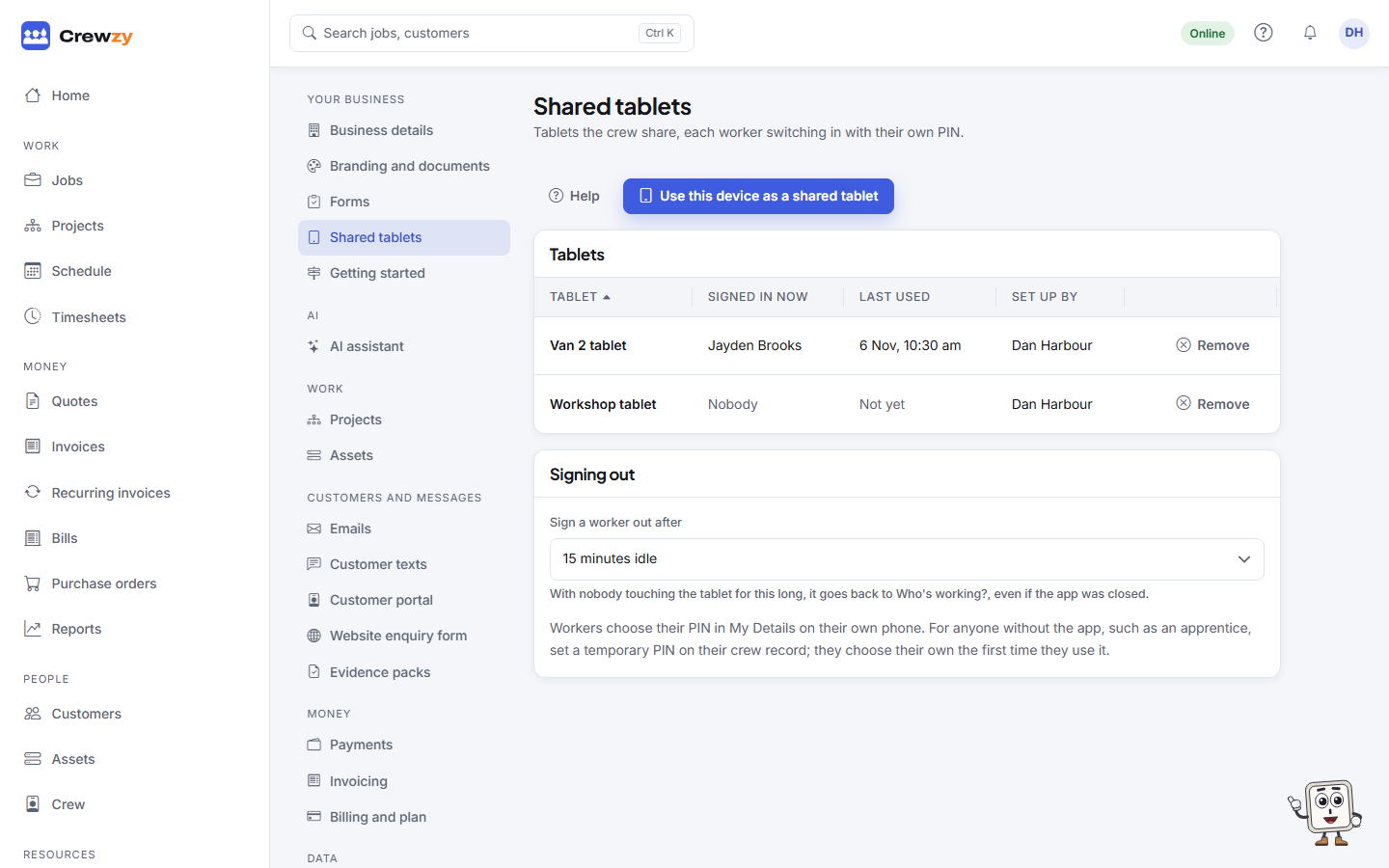
- Go to Settings, Shared tablets.
- Press Use this device as a shared tablet. If your business records where people clock on, tap Allow location there, so the tablet asks once now rather than at a worker's first clock on.
- Give it a name you will know it by, such as Van 2 tablet, and press Set up and sign me out.
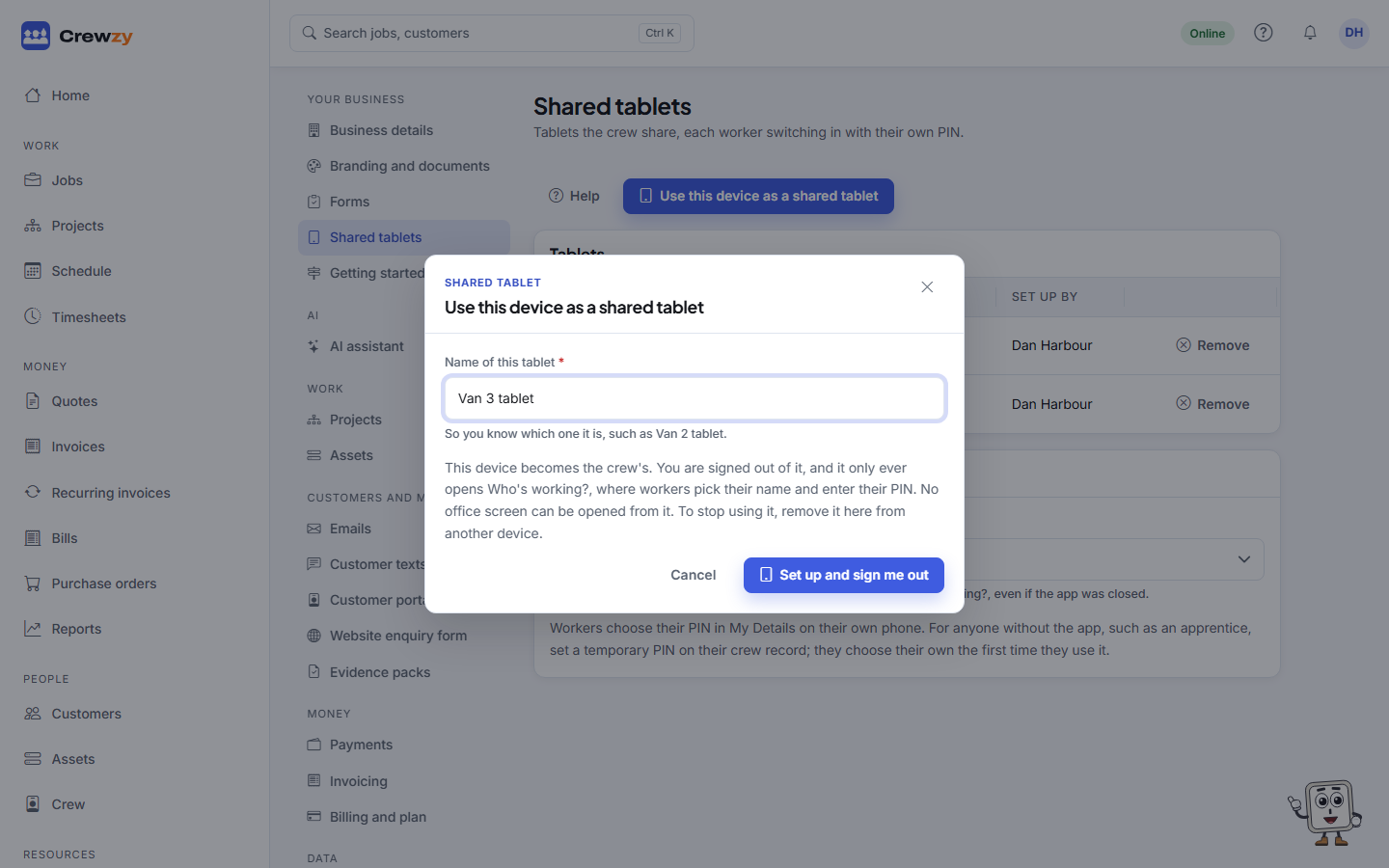
You are signed out of the tablet straight away. From then on it only ever opens Who's working?. Nobody can open an office screen on it, whatever they try: a shared tablet is only ever a worker's, with their own jobs, as on their phone.
The tablet shows on Settings, Shared tablets with when it was last used and who is signed in on it now.
Each worker's PIN
A worker needs a PIN before they can use a shared tablet. Workers with the app on their own phone set it themselves, in My Details, under Shared tablet PIN. It is 4 to 6 digits, and not one digit repeated or a run like 1234.
For someone without the app, open them on Crew and, under Shared tablets, press Set a temporary PIN. Tell them the PIN in person. The first time they use it, the tablet asks them to choose their own, so only they know it.
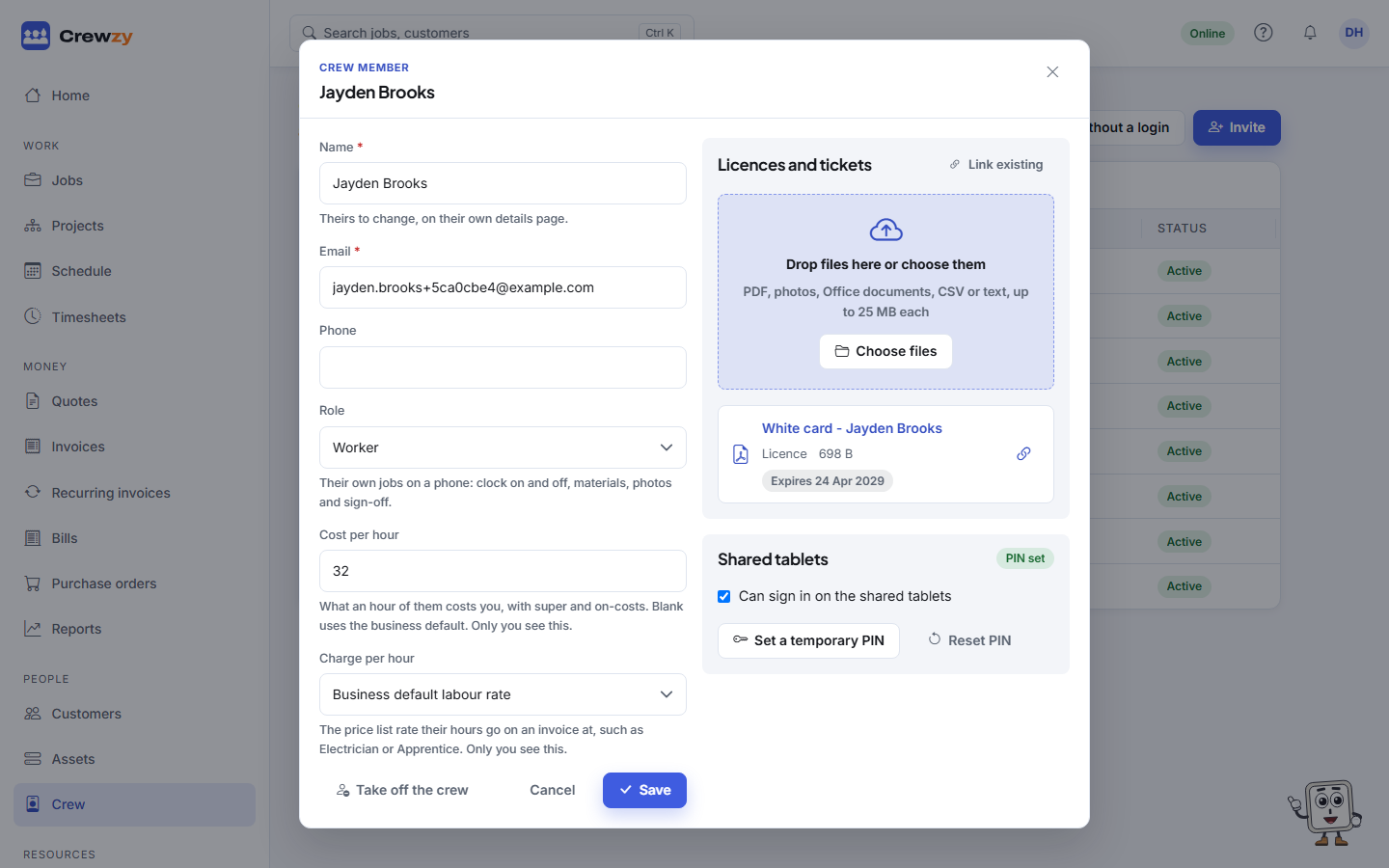
On the same record you can:
- untick Can sign in on the shared tablets for someone who should not use them (everyone on the crew as a worker can, unless you untick it);
- press Unlock for someone locked out after too many wrong PINs;
- press Reset PIN when someone has forgotten theirs. They set a new one in My Details, or you set a temporary one.
Nobody, the office included, can see a worker's PIN.
Apprentices without a login
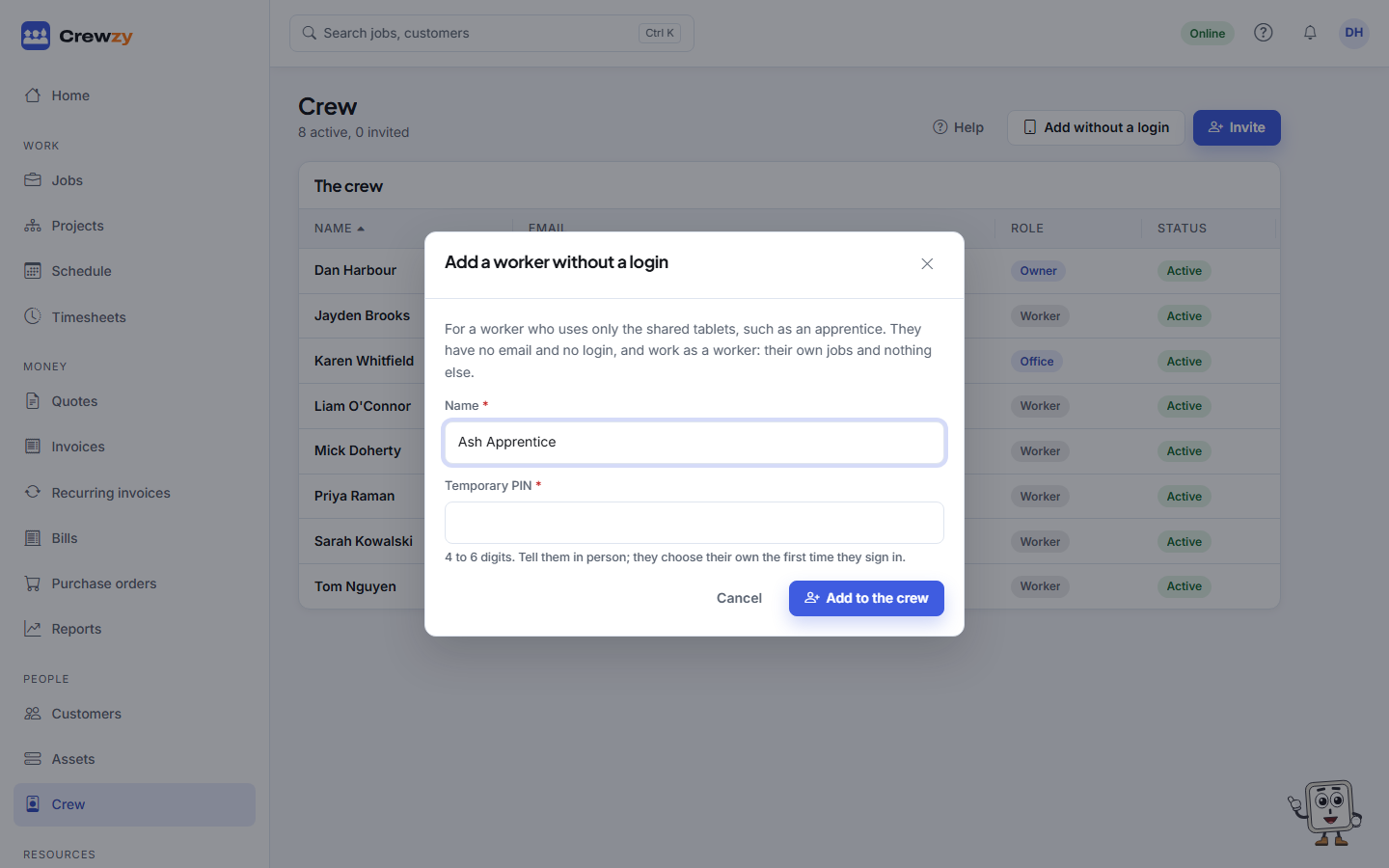
Someone who only ever works on the shared tablets does not need an email address or the app. On Crew, press Add without a login, type their name and a temporary PIN, and press Add to the crew. They pick their name on the tablet like everyone else. If they later get the app on their own phone, add their email on their crew record and they are sent an invitation.
Signing out
A worker is signed out when they press Switch worker, when someone else signs in on the tablet, and after the tablet has been left alone for a while: 15 minutes unless you change Sign a worker out after on Settings, Shared tablets. That holds even if the app was closed.
What is recorded
Time, notes, photos, forms, parts and sign-offs are recorded as the worker who did them, as they are from a phone. Time entries, notes and sign-offs also say which tablet, such as Mick Doyle on Van 2 tablet.
Work done on the tablet with no signal is kept on it and sent as the person who did it, even if someone else has signed in by the time it gets signal. It is accepted for up to 3 days.
Stop using a tablet
On any other device, go to Settings, Shared tablets and press Remove beside it. It stops working straight away, whoever is on it. Anything still waiting on it to sync is not sent, so give it signal first if you can. A lost or stolen tablet should be removed at once.