Arrange your home page
Move, resize, add and remove widgets, from the mouse or the keyboard.
Everyone arranges their own Home. Your layout is saved for you and does not change anyone else's.
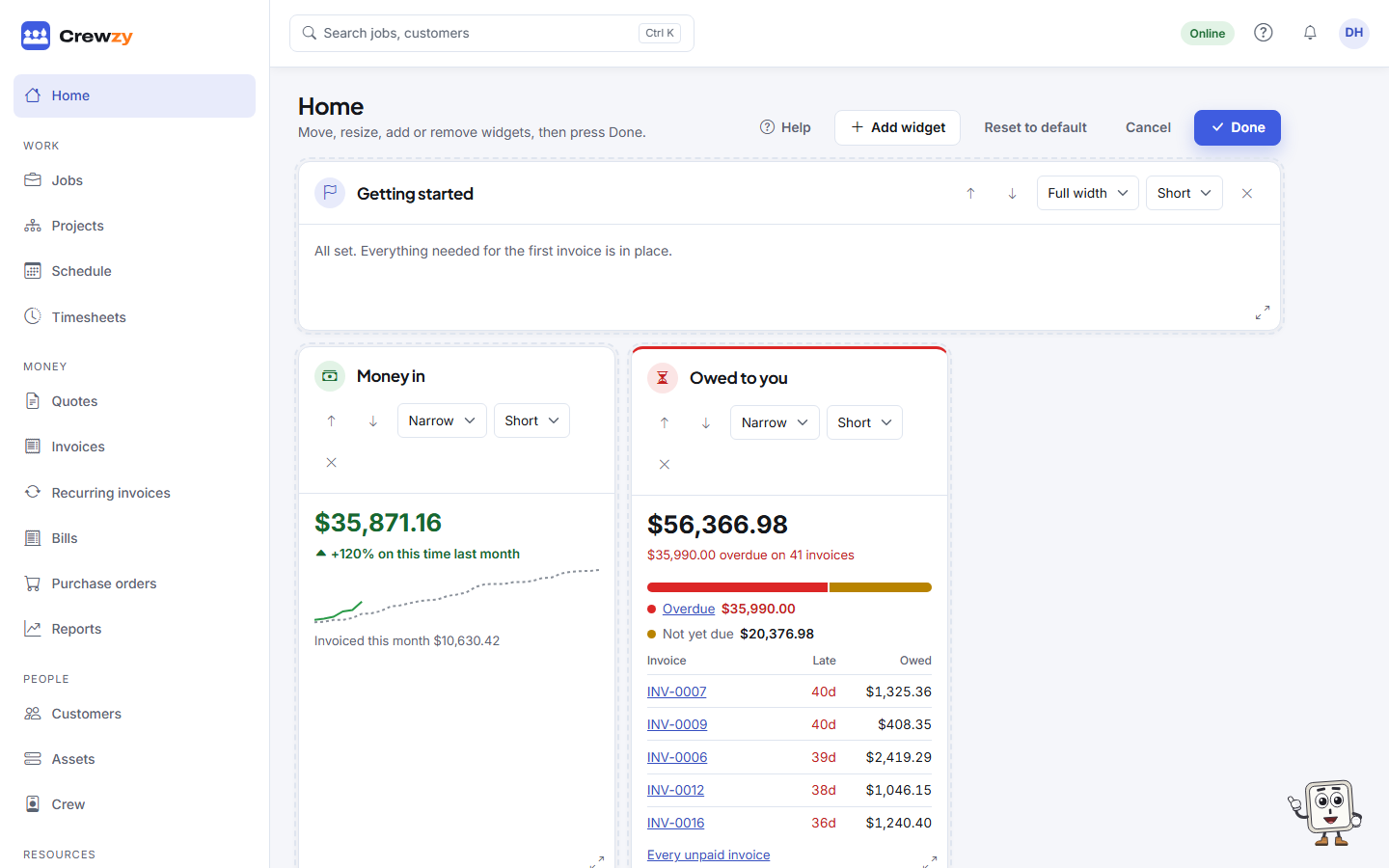
Press Arrange at the top of Home.
Move a widget
Drag a widget by its heading to where you want it, or use its up and down arrows.
Resize a widget
- Drag the grip in the widget's bottom-right corner. It snaps to the grid.
- Or pick a width (Narrow, Wide or Full width) and a height (Short or Tall) from the widget's lists.
- From the keyboard: move to the grip and use the arrow keys. Right and left change the width, down and up the height.
Some widgets have limits, so a chart never gets too small to read. On a phone, Home is one column and widgets are not resized.
Add or remove
- Add widget lists the widgets you can add that are not on your page.
- Press the cross on a widget to take it off.
Save or start again
- Done saves your layout.
- Cancel puts it back as it was.
- Reset to default goes back to the standard layout for your role.