Suggested replies
Let the assistant draft a reply to a customer's question, then check it and send it yourself.
When a customer asks a question from their quote link, the assistant can write a reply for you from what is on the quote and the job. You always read it, change what you like and press Email reply yourself. Nothing is sent for you.
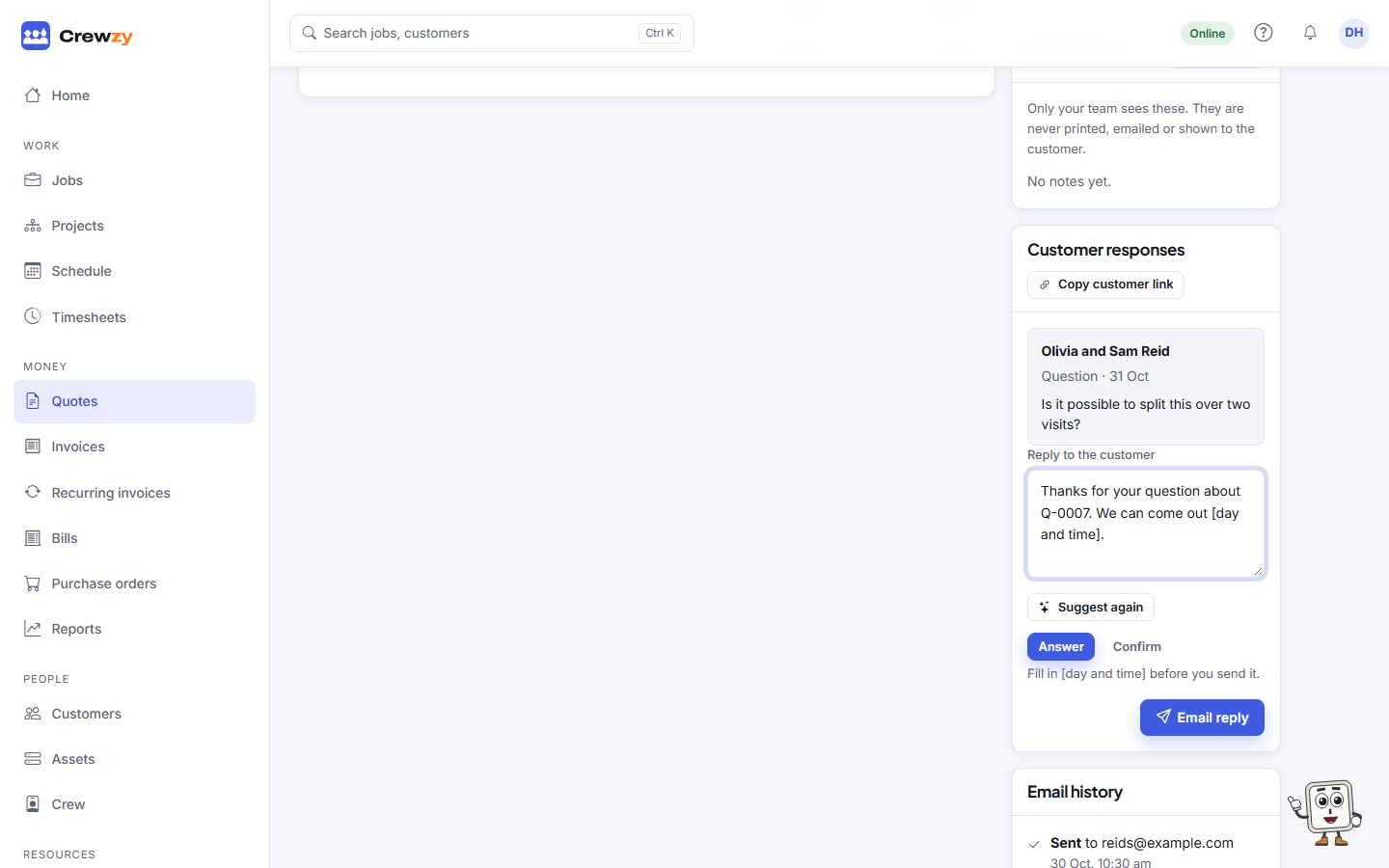
Suggest a reply
- Open the quote. The question is in the Customer responses card.
- Under Reply to the customer, press Suggest a reply.
- The reply appears in the box. Where there is more than one kind, such as Answer, Confirm or Reschedule, press one to swap it in.
- Fill in anything in square brackets, such as [time]. The assistant leaves these where it does not know the answer, rather than making one up.
- Edit the words if you want, then press Email reply.
You can also start from Home: each question under Customer questions has a Suggest a reply link. Or open the assistant in the corner on a quote and choose Suggest a reply, then Put it in the reply box.
What it uses
The reply is written from what the customer can already see or be told: the quote's lines, total, notes and terms, the job's progress, when it is booked and the crew's first names, and what is owed on the job's invoices. It never sees your costs, the job's internal notes or anyone else's records, and it never promises a price or date that is not already there.
A customer who writes STOP gets no suggestion.
Make it sound like you
An owner can describe how the business talks to customers under Settings, AI assistant, How you talk to customers, for example "Short and cheerful, first names only". Every suggestion follows it.