Purchase orders and suppliers
Keep your suppliers, send them orders, and record goods coming in.
Purchase orders are optional. Use them when you want a supplier to have a written order with your account number on it, and to match their bill to what you asked for.
Suppliers
Go to Resources, Suppliers and press Add supplier. Add their Name, Your account number with them and the Email for orders, and a phone and contact if you like. You can also add a supplier while checking a bill.
If your bookkeeper wants a supplier's bills posted somewhere other than your usual purchases account, enter that account under Expense account in your books.
Send an order
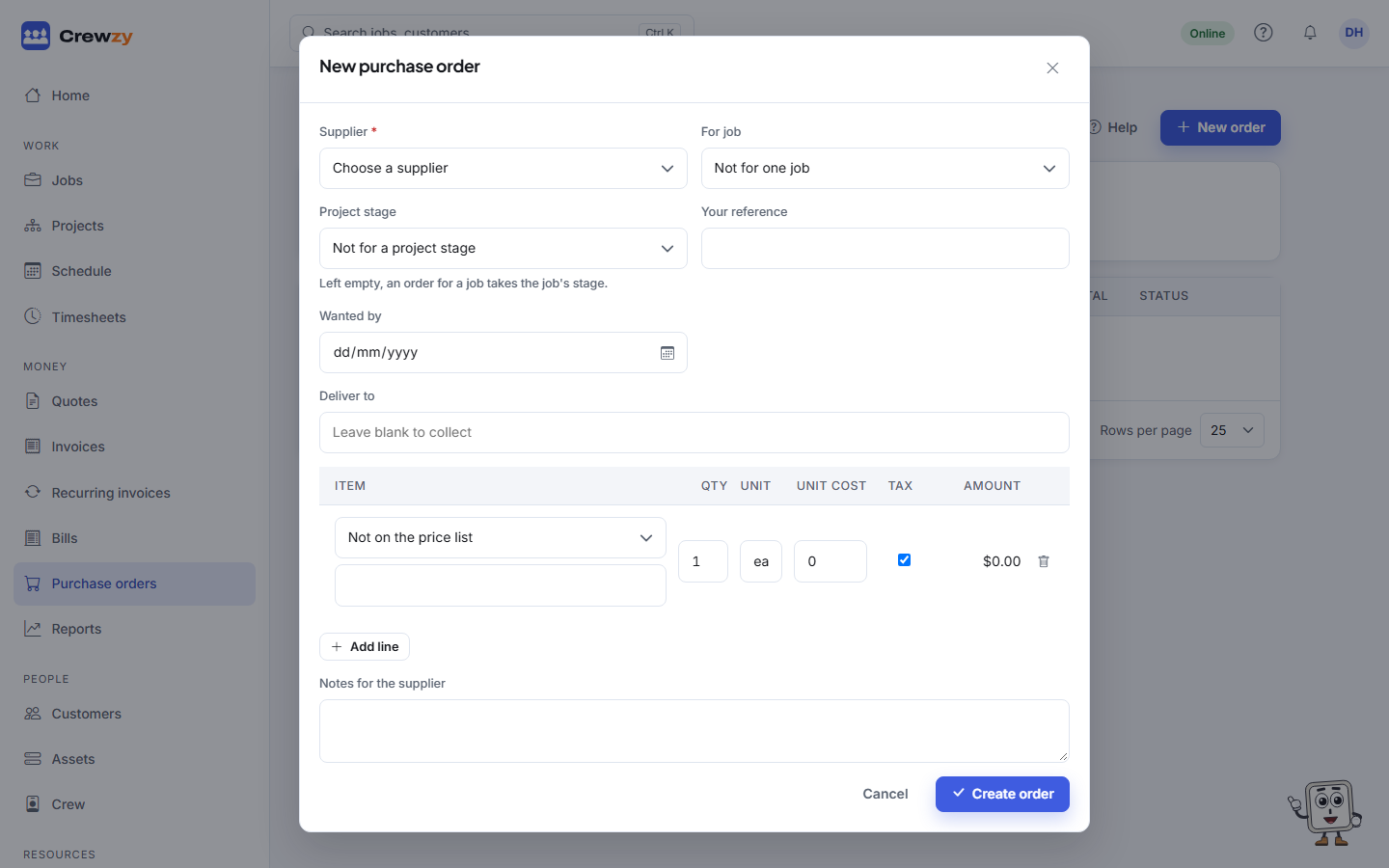
- Go to Money, Purchase orders and press New order.
- Choose the Supplier, and For job if the order is for one. For a project cost with no job, such as a site shed, choose the Project stage instead (it shows once you have projects). Add Your reference, Wanted by, Deliver to and Notes for the supplier if they help.
- Add the lines. Picking a price list item fills in its name and what it usually costs.
- Press Create order. It is a draft you can change with Edit.
- Press Email to supplier to send it with a PDF attached, or Mark as sent if you phoned it through.
Once sent, an order can no longer be changed. Email again sends it once more, and Cancel order cancels it.
Goods in
When the goods arrive, press Goods in and enter how many of each came. The order shows as part received until everything is in, then received.
When the supplier's bill comes, choose the order under Against order on the bill, and its lines are matched to the order. A line for more than you ordered is marked so you can check it.